01
Install and activate
Download the Windows installer after purchase, complete setup, open the app from the desktop or Start menu and enter the activation key supplied with your order.
USER GUIDE
Install, activate and handle the most common PDF jobs with a visible file list and local output folder.
01
Download the Windows installer after purchase, complete setup, open the app from the desktop or Start menu and enter the activation key supplied with your order.
02
Use the file list to add PDF files, then select one, several or all files for the next operation.
03
Set where generated documents should be saved before processing, so results never disappear into an unknown folder.
04
Follow the progress bar, then open the output folder to review generated Word files, images or processed PDFs.
LIGHT EDIT
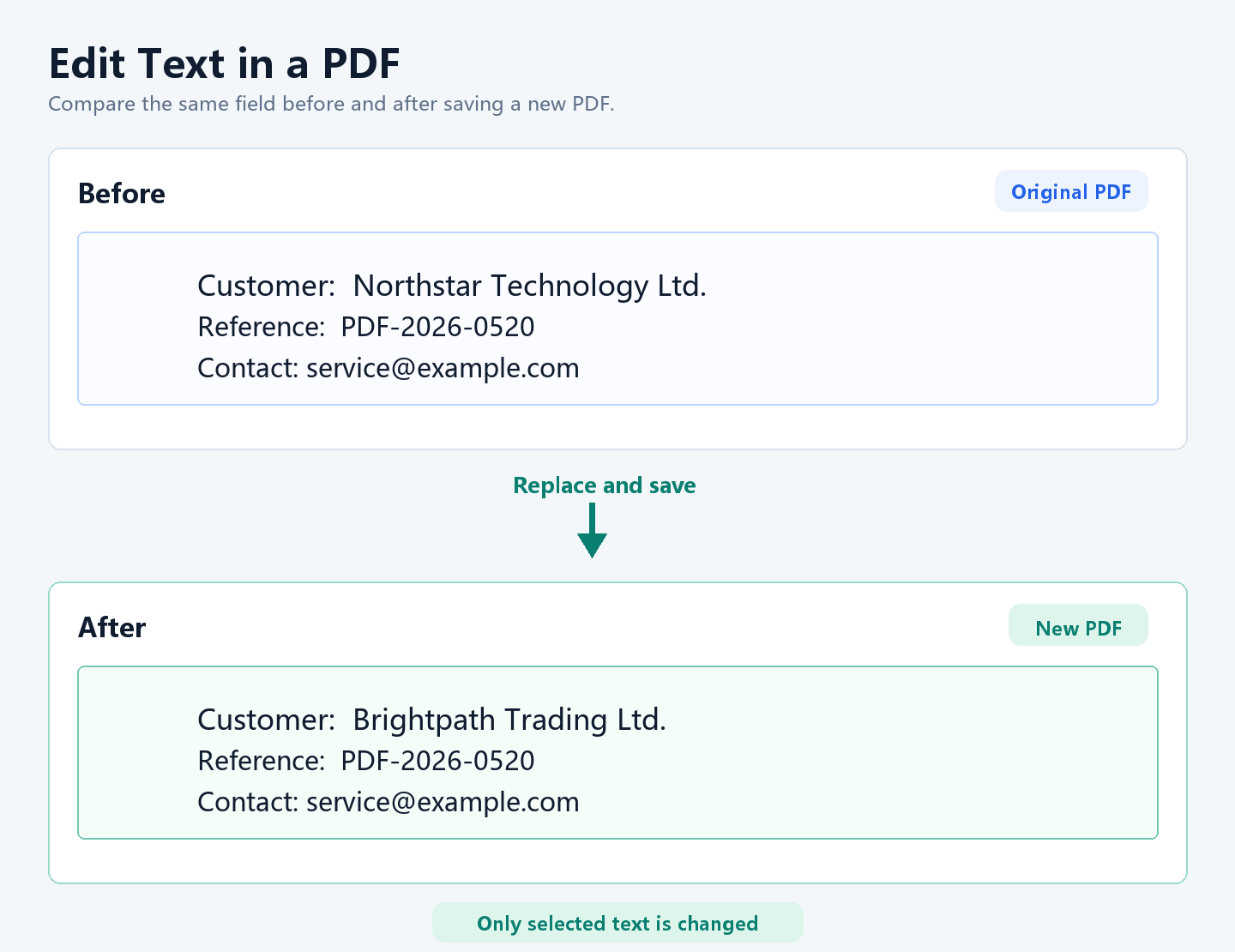
Select a short text field in preview and save a new PDF. This suits names, company details, dates and brief notes while leaving the original file untouched.
POPULAR TASK
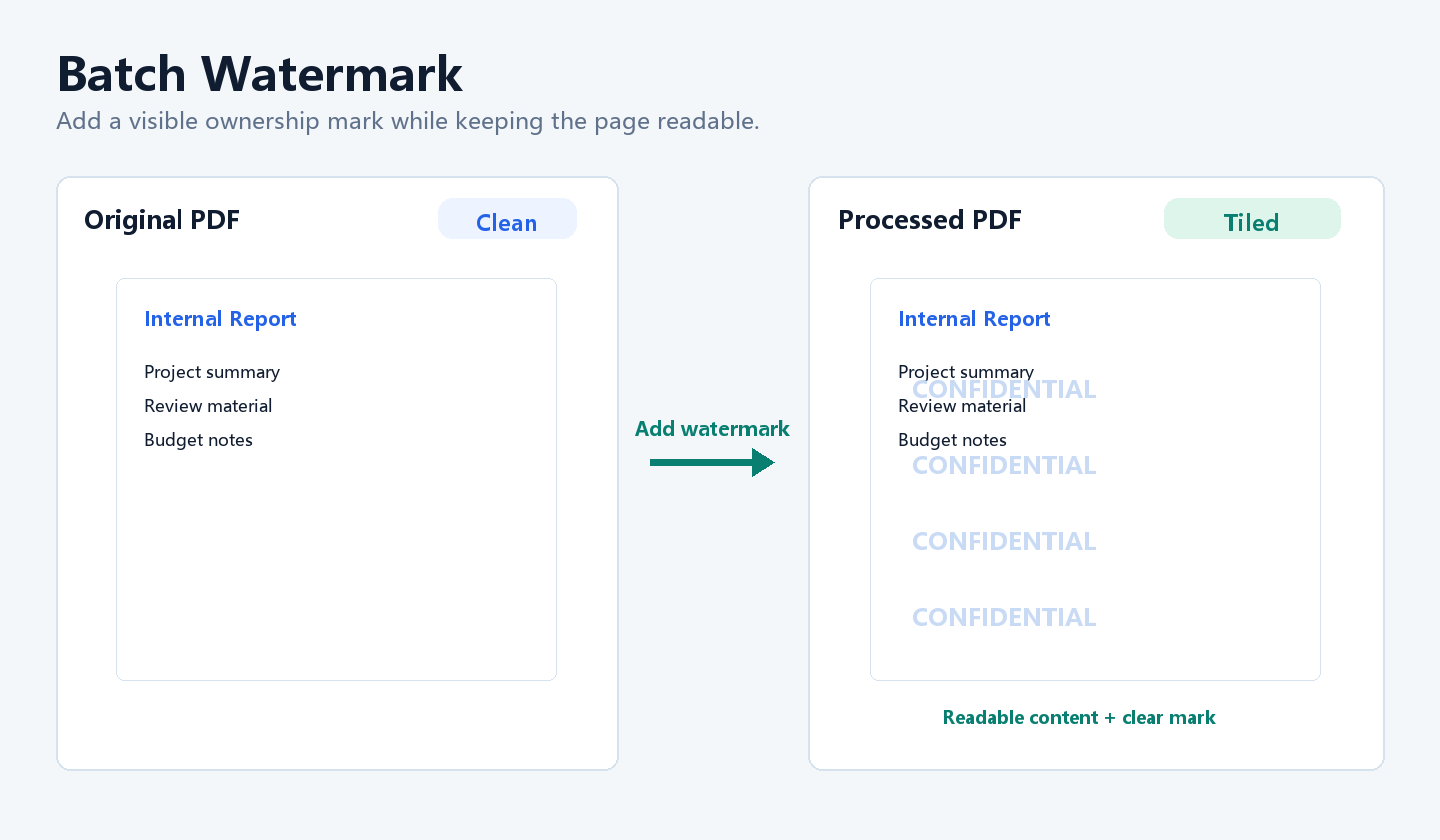
Add selected documents, choose text or logo watermark, select centered or tiled placement, tune opacity, rotation and page range, then process the chosen files.
CONVERSION
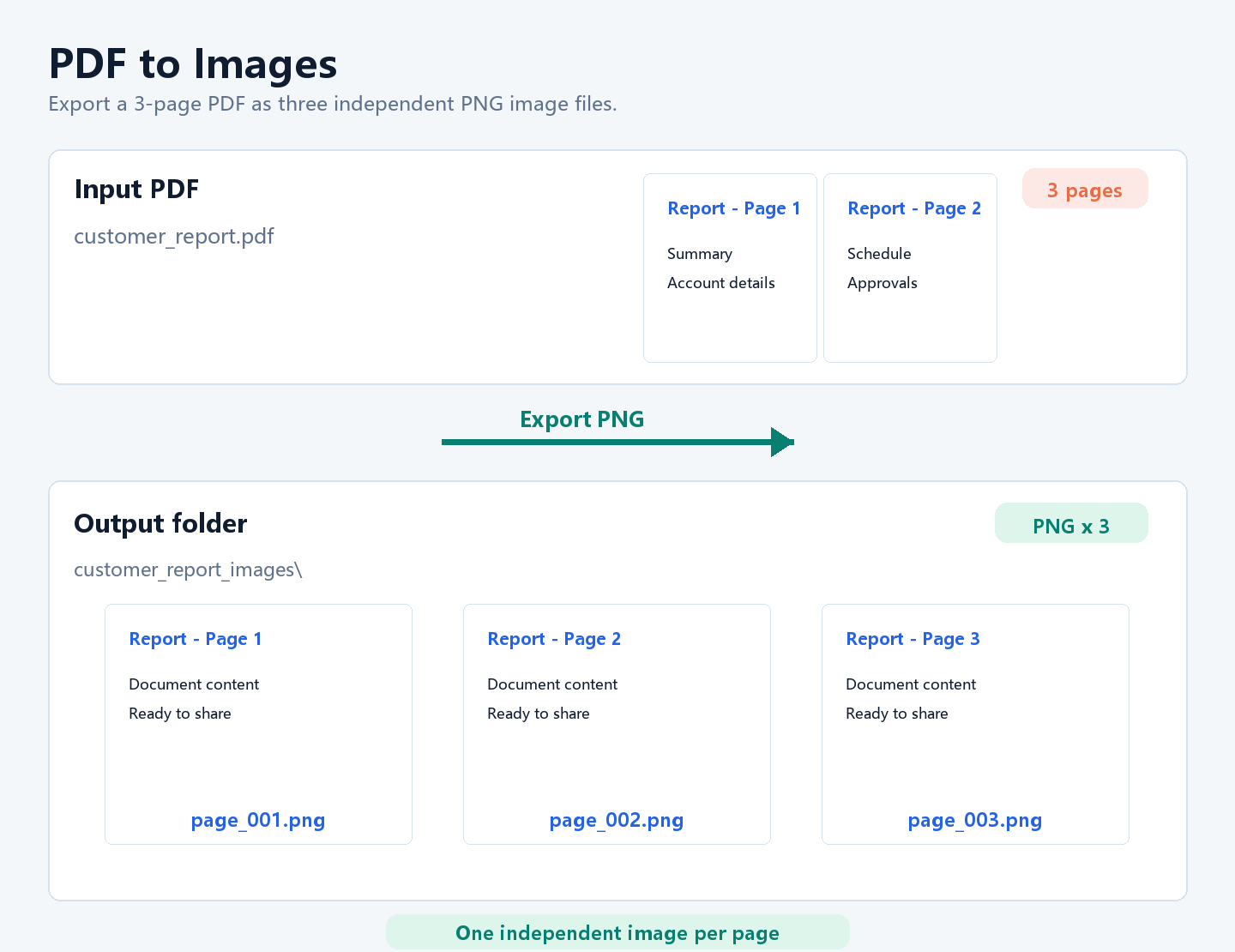
A multi-page PDF exports into one PNG per page, making the change in file format and output count easy to verify.
Keep the original PDF. Lightweight text edits are for short corrections and additions; this product does not promise Word-style rebuilding of every complex or scanned PDF.